الإعلانات
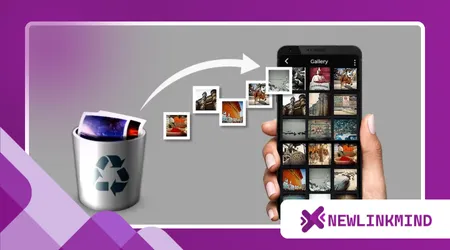
إذا سبق لك أن فقدت صورك، فأنت تعرف الذعر الذي يلي ذلك مباشرة. سواء كان ذلك حذفًا عرضيًا، أو تحديثًا للبرنامج، أو تلفًا في بطاقة الذاكرة، فإن الخبر السار هو أنه في معظم الحالات، لا يزال من الممكن استعادة صورك.
سيرشدك هذا الدليل خلال... خطوات عملية لاستعادة الصور المفقودة, سواء كنت تستخدم أندرويد جهاز أو آيفون. اتبع كل خطوة بعناية وتجنب استخدام هاتفك كثيراً قبل التعافي - فهذا يزيد من فرص نجاحك.
الخطوة الأولى: تحقق من سلة المهملات أو مجلد المحذوفات مؤخراً
قبل تجربة أي شيء متقدم، ابدأ بأسهل طريقة. يقوم كل من نظامي أندرويد وآيفون بتخزين الصور المحذوفة مؤقتًا قبل حذفها نهائيًا.
على نظام أندرويد
- افتح تطبيق صور جوجل.
- مقبض المكتبة → سلة المهملات (أو "صندوق القمامة" في بعض الطرازات).
- اضغط مطولاً لاختيار صورك المفقودة.
- مقبض يعيد.
ستعود صورك إلى ألبوماتها الأصلية على الفور.
على جهاز iPhone
- افتح صور برنامج.
- مقبض الألبومات ← المحذوفة مؤخراً.
- اختر الصور التي تريد استعادتها.
- مقبض التعافي في أسفل اليمين.
💡 نصيحة: تبقى الصور المحذوفة هنا لمدة تصل إلى 30 يومًا. بعد ذلك، يتم مسحها تلقائيًا - لذا تصرف بسرعة!
الخطوة الثانية: ابحث في النسخ الاحتياطية السحابية (صور جوجل أو iCloud)
ينسى العديد من المستخدمين أن صورهم قد لا تزال موجودة بأمان في السحابة.
لمستخدمي أندرويد
- يزور photos.google.com.
- سجّل الدخول باستخدام حسابك على جوجل.
- تصفح "الصور" أو "الأرشيف".“
- إذا عثرت على صورك، فقم بتنزيلها أو استعادتها.
لمستخدمي أجهزة iPhone
- انتقل إلى icloud.com ثم قم بتسجيل الدخول.
- انقر صور.
- تحقق من تم حذفها مؤخراً ألبوم.
- حدد الصور ← انقر التعافي.
حتى لو تم مسح مساحة تخزين هاتفك، فإن النسخة الاحتياطية المتزامنة يمكنها استعادة صورك على الفور.
الخطوة 3: استخدام خاصية استعادة البيانات من بطاقة الذاكرة الخارجية (لأجهزة أندرويد)
إذا تم تخزين صورك على بطاقة SD خارجية، فإن عملية الاسترداد تختلف - وغالبًا ما تكون أكثر نجاحًا.
- أغلق هاتفك.
- قم بإزالة بطاقة الذاكرة بعناية.
- أدخلها في جهاز الكمبيوتر الخاص بك باستخدام قارئ البطاقات.
- افتح برنامجًا للتعافي مثل:
- ريكوفا (ويندوز)
- ديسك ديجر
- برنامج EaseUS لاستعادة البيانات
- دع البرنامج يقوم بفحص بطاقة الذاكرة.
- استعرض الصور التي تم استعادتها واحفظها على جهاز الكمبيوتر الخاص بك.
⚠️ لا تقم أبدًا بحفظ الصور المستعادة على نفس بطاقة الذاكرة SD — قد يؤدي ذلك إلى استبدال الملفات الأصلية.
الخطوة الرابعة: استخدام تطبيق استعادة الصور (بدون جهاز كمبيوتر)
إذا لم يكن لديك جهاز كمبيوتر، فلا يزال بإمكانك الاستعانة بتطبيقات الهاتف المحمول. تتوفر خيارات موثوقة لكل من نظامي أندرويد وآيفون.
- DiskDigger (أندرويد) — يقوم بفحص وحدات التخزين الداخلية والخارجية.
- برنامج استعادة البيانات Dr.Fone (أندرويد/iOS) — ممتاز، ولكنه فعال للغاية.
- Tenorshare UltData (Android/iOS) — فحص عميق بدون صلاحيات الجذر.
خطوات الاستخدام:
- قم بتثبيت التطبيق من متجر جوجل بلاي أو متجر التطبيقات.
- امنح الأذونات اللازمة.
- قم بتشغيل فحص عميق للوسائط المحذوفة.
- استعرض الملفات التي تحتاجها واستعدها.
📱 هذه التطبيقات آمنة عند تنزيلها من المتاجر الرسمية - تجنب أي تطبيقات "استعادة البيانات المعجزة" الموجودة خارجها.
الخطوة 5: استعادة نسخة احتياطية (استعادة الجهاز بالكامل)
إذا لم تنجح أي من الطرق المذكورة أعلاه، فقد يكون استعادة البيانات من نسخة احتياطية كاملة هو الخيار الأفضل.
لأجهزة أندرويد
- انتقل إلى الإعدادات ← جوجل ← النسخ الاحتياطي.
- تحقق من تاريخ آخر نسخة احتياطية لديك.
- استعد جهازك باستخدام حسابك على جوجل.
لأجهزة آيفون
- انتقل إلى الإعدادات ← عام ← نقل أو إعادة ضبط الآيفون ← مسح جميع المحتويات والإعدادات.
- أثناء الإعداد، اختر استعادة من نسخة iCloud الاحتياطية.
- حدد تاريخ النسخ الاحتياطي الذي يحتوي على صورك.
⚠️ تذكر أن استعادة نسخة احتياطية كاملة ستستبدل بياناتك الحالية ببيانات النسخة الاحتياطية. لذا، احفظ الملفات الجديدة في مكان آخر أولاً.
الخطوة السادسة: استكشاف خدمات التخزين السحابي الأخرى
أحيانًا، قد تتم مزامنة صورك مع تطبيق سحابي آخر دون علمك. تحقق من هذه التطبيقات:
- ون درايف → صور → سلة المهملات
- دروب بوكس → مجلد تحميلات الكاميرا
- صور أمازون → محذوفة مؤخراً
- سامسونج كلاود (على هواتف جالاكسي)
قد تجد نسخًا من صورك المفقودة حتى بعد مرور أشهر، وذلك حسب فترة الاحتفاظ التي تحددها كل خدمة.
الخطوة 7: جرب خدمات التعافي الاحترافية
إذا جربت كل شيء وما زالت صورك مفقودة، فقد تكون خدمة استعادة البيانات الاحترافية هي الملاذ الأخير لك.
يستطيع المتخصصون في كثير من الأحيان استخراج البيانات من الهواتف التالفة, بطاقات SD تالفة, ، أو الأجهزة المهيأة.
تتضمن بعض الأسماء الموثوقة ما يلي:
- استعادة البيانات المتميزة
- على المسار الصحيح
- بيانات الاسترداد
على الرغم من أن هذه الخدمات قد تكون مكلفة، إلا أنها غالباً ما تكون الطريقة الوحيدة لاستعادة الصور المهمة أو التي لا يمكن استبدالها.
الخطوة 8: منع فقدان الصور في المستقبل
بمجرد أن تتمكن من استعادة صورك المفقودة، تأكد من عدم تكرار ذلك أبداً.
إليك الطريقة:
- تفعيل النسخ الاحتياطي التلقائي في صور جوجل أو iCloud.
- جدولة عمليات النقل المنتظمة إلى جهاز الكمبيوتر الخاص بك أو إلى محرك أقراص خارجي.
- تجنب حذف الصور مباشرة من التطبيقات المتزامنة (مثل واتساب أو إنستغرام).
- راقب مساحة التخزين الخاصة بك - قد يؤدي انخفاض مساحة التخزين إلى فشل عملية المزامنة.
- استخدم بطاقات SD عالية الجودة من علامات تجارية موثوقة.
🔒 اتخاذ هذه الخطوات الصغيرة يمكن أن يوفر عليك ساعات من الإحباط في المستقبل.
نصيحة إضافية: استعادة الصور المفقودة من واتساب أو ماسنجر
إذا قمت بحذف الصور من تطبيقات المراسلة، فتحقق من هذه المجلدات:
- واتساب:
التخزين الداخلي ← واتساب ← الوسائط ← صور واتساب - رسول: توجد الصور المحفوظة عادةً في هاتفك التنزيلات المجلد أو مزامنته مع خوادم فيسبوك.
يمكنك أيضًا استعادة الوسائط المحذوفة عن طريق استعادة النسخة الاحتياطية لتطبيقك (WhatsApp → الإعدادات → الدردشات → النسخ الاحتياطي للدردشة).
الخاتمة
قد يبدو فقدان الصور وكأنه فقدان جزء من ذكرياتك - ولكن عادةً ما يكون التعافي ممكناً.
سواء كنت تستخدم أندرويد أو آيفون, ابدأ بمجلد المهملات أو المجلد المحذوف مؤخرًا، وتحقق من السحابة، وانتقل إلى أدوات الاسترداد إذا لزم الأمر.
إذا كانت صورك مهمة،, تصرف بسرعة وتوقف عن استخدام هاتفك فوراً بعد ملاحظة الفقدان. كل ملف جديد يُكتب على الجهاز يقلل من فرص استعادة البيانات بنجاح.
بمجرد أن تصبح صورك آمنة مرة أخرى، قم بإعداد النسخ الاحتياطية التلقائية ومزامنة السحابة للتأكد من حماية ذكرياتك دائمًا - بغض النظر عما يحدث بعد ذلك.